GOMIND FEATURE RELEASE · 2026.10.08
What Does XMind’s “Upgrade and Go Unlimited” Prompt Mean? 3 Sheets per Map
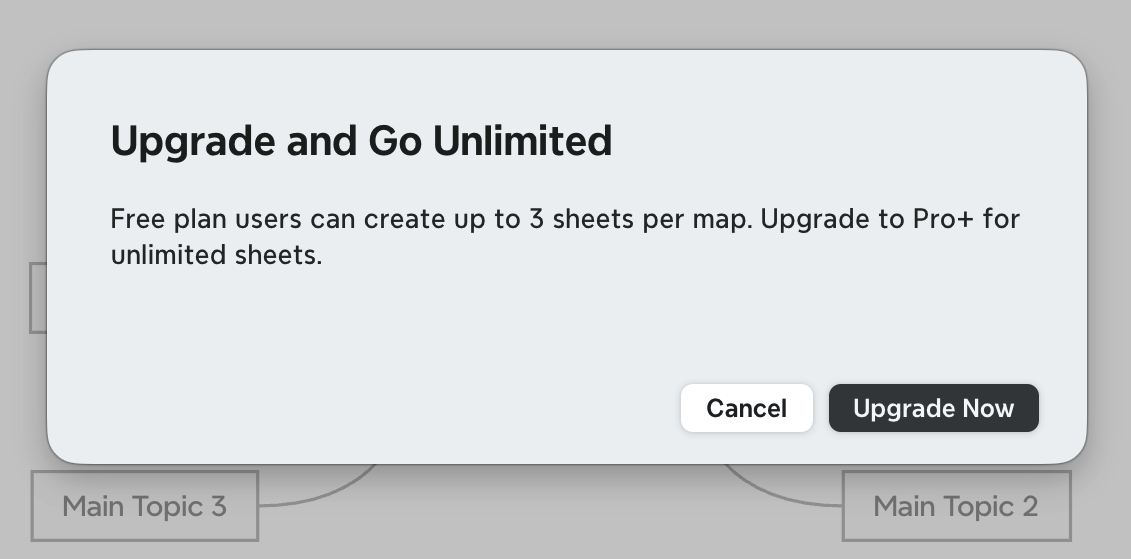
“Upgrade and Go Unlimited” is the headline shown in the XMind dialog. Its full text reads: “Free plan users can create up to 3 sheets per map. Upgrade to Pro+ for unlimited sheets.” If you searched for what the XMind free-plan prompt means, that is the limit described in the screenshot.
GoMind offers a different kind of thinking space: pages and topics have no count limit, so a map can grow with the work. A mind map can start with one central idea and continue into branches, references, and plans without a page-count cap.
Keep the structure of a complete knowledge system
Large projects and study plans often need several levels of organization. Exam preparation may include an overview, chapters, focused topics, and review notes. A project plan may bring together goals, timelines, risks, and retrospectives. Separate pages can provide different views while remaining part of one connected body of work.
GoMind places no limit on the pages or topics in a map. Add, duplicate, rename, and reorder pages as your structure develops. There is no need to squeeze material into a fixed number of pages or interrupt your work when a quota prompt appears. The core create-edit-export workflow remains available; AI features can be unlocked with your own API key and a one-time Plus purchase.
From structured text to editable context
GoMind topics can hold Markdown or HTML notes, images, LaTeX formulas, labels, stickers, and links. Notes can also display Mermaid flowcharts, sequence diagrams, and Gantt charts. This gives topics room for explanations, references, and context, making a map useful as an ongoing workspace rather than a picture to look at once it is finished.
The visual structure can change too. GoMind offers mind map, timeline, fishbone, table, logic, and organization chart layouts, among others. Use a timeline to organize progress, a fishbone to analyze a problem, or an org chart to show roles and relationships—all with the same underlying content.
Bring existing material in and take the result anywhere
If you already have XMind files, import .xmind into GoMind and continue editing instead of starting from a blank canvas. Markdown, YAML, JSON, TOML, OPML, FreeMind, and plain text can also be imported. When the work is ready, export it as PNG, JPG, SVG, PDF, XMind, Markdown, OPML, Word, PowerPoint, or Excel for sharing, printing, archiving, or further editing.
GoMind is available on Windows, macOS, Linux, iOS, Android, and the Web. Local files, auto-save, and recovery help you continue your work, while cloud sync remains optional. For AI, GoMind supports your own API key and compatible local models, leaving model and data-workflow choices in your hands.
How to Solve: Pick Up Where Your Map Left Off
Download GoMind at gomind.app or open the Web version. Import your existing XMind file, then keep expanding pages, topics, and content in the way that makes sense to you. When it is time to share, export the result in the image, document, or structured format you need.
Pages do not have to be a quota to plan around; they can simply be space for organizing your ideas. Bring your existing material and continue with GoMind.
GOMIND
Start with a real idea and keep the structure editable.
XMind’s dialog says, “Free plan users can create up to 3 sheets per map. Upgrade to Pro+ for unlimited sheets.” Here is what the prompt means and how GoMind offers unlimited pages and topics.
Open GoMind →